

OSX

Update on Apple / Mountain Lion wifi issues

One of the Apple Support Communities pages I am subscribed to is all about the ‘wifi dropping’ issue people have had when updating to Mountain Lion. This has now reached its 14th page and new issues are added almost daily.

I found that the wifi dropping/connection issues went away when I followed Apple’s recommended settings for Wifi on iOS and OSX. The main thing to improve the situation was changing the security to WPA2.

Wifi Troubleshooting Software

As wifi constantly seems to be a problem – eg signal strength, interference and dropout – I have been searching for software which allows you to check what wifi traffic there is in your location. Up to now, I haven’t found anything useful, but I then read in an IT World article about software called inSSIDer – which is the exact thing I was looking for.

It’s well worth installing to see what wifi traffic there is in your area and what may be causing wifi issues. You can check each wifi channel to see how many other wifi networks are using it – and probably clogging it up – and then perhaps make changes to your wifi setup to try and fix the issues.  It also shows you its rating of your connection, in terms of a Link Score – the higher the better.

There are versions available for Windows, Mac and Android.


Trying out Droplr

Droplr

Having used the excellent Dropbox almost exclusively for file-sharing over the last year, I thought it was about time I tried something different, to compare and contrast to Dropbox.

The similar-sounding Droplr has been around a while and the write-ups I’ve seen for it have always been good. Another plus is that you can get up to 1 Gb storage for free, can store images, videos, files and notes, plus there are several different ways of accessing content – Web App, Mac App, Windows App and iOS App.

I’ve registered for my new Droplr account – as simple as suppling my email address and password – and so far have installed the iOS App and used the Web App. After a small amount of use, things are looking good. I’ll add another post with more feedback after about a weeks use of the Droplr service.

On AppStorm.net – Review comparing Droplr to CloudApp

Apple’s Recommended Wi-fi Settings for iOS & OSX

iOS 6 OSX

The Apple eco-system – iOS devices and OSX systems – seems to have a few problems with wi-fi connections, especially in the time just after upgrades. I have experienced this myself a couple of times, as I documented here on my blog.

Recently, I found a page on Apple’s Support site, which details Apple’s Recommended Wi-fi settings for iOS and OSX.

Below I’ve outlined the main recommendations:

  • SSID – Any unique name
  • Hidden Network – disabled
  • MAC Address authentication or filtering – Disabled
  • Security – WPA2 Personal (AES)
  • Channel – Auto

I’d suggest checking the page on Apple’s Support site in full before making any changes to your wi-fi setups.

Note: Changing the security to WPA2 recently fixed my Wi-fi problems after the OSX upgrade to Mountain Lion.


Problem with iTunes 11 and Apple TV?

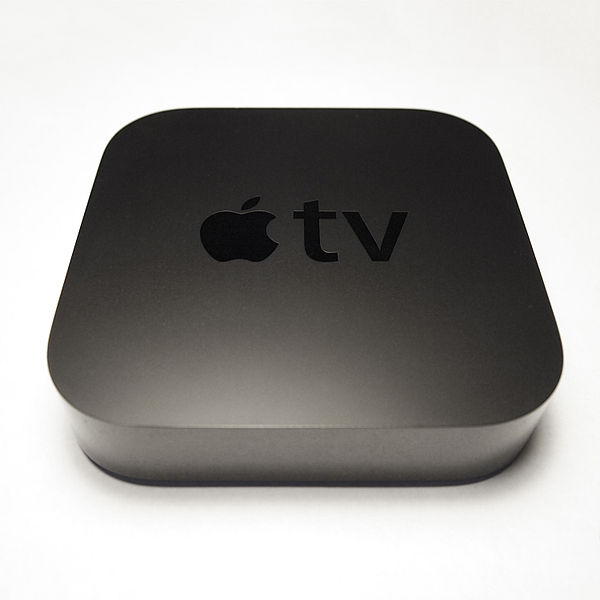
Apple TV 2nd Gen

Apple TV 2nd Gen

Here’s a little tip for anyone who’s experiencing problems watching movies via their Apple TV, having recently upgraded to iTunes 11.

I had this issue last night and thought it might take a lot of messing around to come up with  a fix – but, luckily found that practising that old adage of “if it don’t work, restart it” worked first time.

Trying to access my iTunes shared library from my Apple TV (2nd gen) just wouldn’t work, which was annoying to say the least. I then also tried to AirPlay the film from my iPad to the Apple TV, but this wouldn’t work either.

I had a quick check online for similar issues, but before going too far down that line, I restarted the Apple TV. After the short reboot, it then worked perfectly and my shared library came up almost straight away and I could watch the movie I wanted (The Bourne Supremacy)

Hope this helps someone else, as its easy to get these kind of errors with all these different upgrades going on continuously of software, O/S, devices, computers etc.


Cross-Browser Testing – Turning off browser auto-updates

Main Browsers

For effective cross-browser testing, it can be useful to have a variety of different versions of different browsers on different platforms.

In general, its very awkward (or impossible) to have different versions of the same browser on the same machine. Therefore, a way around this is to have different versions of browsers on each of your test systems / virtuals.

An example setup could be:

  • Windows 7 – IE9, Chrome 22, Firefox 16, Safari 5
  • Windows 8 – IE10, Chrome 23, Firefox 15, Safari 5
  • Mac OSX – Safari 6, Chrome 20, Firefox 14

This gives you access to a wide range of browser versions across a wide range of platforms.

One problem that will arise is that some of the browsers will auto-update themselves, if you don’t turn that feature off. In this situation, you could easily end up with all systems having the latest version of Chrome or Firefox.

Here’s a guide to turning off browser auto-updates on Mac OSX and Windows platforms. In some cases, this isn’t really relevant (IE and Safari) but in other cases very necessary (Chrome and Firefox)

Plan A – Turning off Browser Auto-Updates

Firefox
A simple Preferences / Options change.
On Mac – Preferences/Advanced/Update – then set to ‘Never check for Updates’
On Windows – Options/Advanced/Update – same option as on Mac

Chrome
Chrome has been designed to auto-update and make it very awkward for the user to not allow this or turn it off. There are some possibilities however, which may or may not work for you, depending on your setup.
On Mac

http://support.google.com/installer/bin/answer.py?hl=en&ctx=go&answer=147176

http://hints.macworld.com/article.php?story=20100406184528139

On Windows

http://dev.chromium.org/administrators/turning-off-auto-updates

This works via the Windows Registry – I can confirm this worked for me, on Windows 7.

Safari

Safari updates are part of Apple’s Software Updates – so you have control of when updates occur.

Internet Explorer (IE)

IE tends to be tied to a certain platform (IE10 on Windows 8, IE9 on Windows 7, IE8 on Windows XP etc) and even when new versions are released, its usually under the user’s control whether to update or not.

Plan B – Install an old version of the Browser

The alternative to turning off updates is to just delete the browser which has been auto-updated and install the old version again.

The site oldapps.com is excellent for finding old versions of browsers and other software. For Windows users, the URL is www.oldapps.com and for Mac users, the URL is mac.oldapps.com
This site will come in very handy in tracking down particular versions of browsers and other software, when testing compatibility or trying to reproduce reported problems and issues with a particular browser version.


Sauce for Mac

Sauce for Mac

Sauce Labs have recently released a free Mac App which allows you to use their online website testing platform via a desktop Mac App, rather than the usual method of via a browser.

The Mac App can be downloaded for free via saucelabs.com/mac / or iTunes / or the Mac App Store.

I now have this App installed and as I already had a free Sauce Labs account, I logged in with my account info. For a quick demo, I chose my own site’s URL www.patwalsh.co.uk and selected OSX / Firefox 11 as the OS / Browser combination to test on, then hit the Navigate button.

At that point Sauce then starts up a private, virtual machine with the selected setup and displays it inside the Sauce App window, as shown in the screenshot below.

Sauce for Mac - screenshot 1

To setup a Snapshot, you just press the Snap button and Sauce will then save a snapshot of your session.

To end a Session, you can just press the End button. You will then be shown the list of Previous Sessions. If you click one of these, you’re then taken to the Sauce Labs website (which seems a bit odd, as you’re currently in the Mac App) from where you can view all the details of the Test Session and also view Screenshots and Video of the Test Session – very useful when trying to work out how you found that bug you can’t reproduce.

The next Test Session I created was then iOS 6, with screenshot shown below.

Sauce for Mac - screenshot 2

Its pretty cool that this all works (mostly) within a Mac App and I’m sure the peeps at Sauce Labs will add to the App over time. As a freelance website tester these kind of tools are invaluable.


Windows 8 Pro running on VirtualBox on iMac OSX 10.8.2 – Success!!!

Start screen on Windows 8 Pro

As Windows 8 and IE10 have recently been released, I thought I’d better get myself a working Windows 8 system, asap. Will be very useful to be able to see how Windows 8 operates, plus also test IE10 websites as thats already either a requirement (or likely to become a requirement) in some projects I’m working on.

I’m actually writing this blog post on my Windows 8 Pro system, in IE10 – so it has been successful, but after many false starts and problems here and there.

MSN News on Windows 8

So, Windows 8 Pro is running on my iMac OSX 10.8.2, on VirtualBox 4.2.4, having upgraded a previous Windows XP SP3 virtual.

It took me many tries to get this working and the main things learnt were:

  • I tried to upgrade an existing XP virtual on VirtualBox but it would not work, however many ways I tried to change the virtual’s settings. It didn’t matter even when I had the latest copy of VirtualBox – it just wouldn’t work – the Windows-8-Setup and Windows-8-Upgrade-Assistent just wouldn’t run.
  • I then canned my existing XP virtual, which was only for test runs anyway.
  • I then got the very latest VirtualBox – v4.2.4
  • I created a new XP Virtual machine, with the settings as follows:
  •    2 CPUs
  •    Enabled PAE/NX (Important setting to avoid related errors / bootup errors)
  •    Hardware Virtualization – both options left checked
  •    Memory 2048Mb (my iMac has 12 Gb so plenty to spare)
  •    Hard Disk Space 30 GB (THIS WAS VITAL – FIRST TIME I HAD 20 GB – TOO SMALL!)
  • I then created the Windows XP virtual – from a genuine Windows XP SP2 DVD
  • I then had to 1) upgrade the browser to IE8 and 2) update Windows XP to SP3
  • I then downloaded Windows 8 Setup from the email where I’d purchased the Windows 8 Pro upgrade (for £24.99)
  • This time it ran perfectly, unlike on previous attempts, where it started but immediately exited
  • Then entered the Product Key
  • It then downloads Windows 8, which took a while but not that long really for a whole O/S download
  • Then the messages ‘Installing Windows 8′ then ‘Getting a few things ready…’ which continued for a while…
  • Then it was time to accept the License Terms
  • Then clicked Install and off it went.
  • Note: First time I got this far, it went wrong, as the iMac went into Power Saving mode and this screwed up the install process - at this point, it regressed back to Windows XP!  In readiness for the next time, I turned off all Power Saving.
  • Eventually, on the next try, it all worked.
  • I then started up Windows 8 Pro on my VirtualBox and – it started ok.
  • First problem though was that there was no network connection/adapter.
  • I Googled this and found an answer – so shut down the Windows 8 Pro virtual and changed the Network settings for it in VirtualBox. This was to to ensure in the Network settings screen that ‘Attached to:’ said NAT and Adapter Type said ‘Intel PRO/1000 MT Desktop (82540EM)
  • I then started up the Windows 8 Pro virtual and bang – it all worked fine, network and all (having changed a network setting on the main Start screen)

So now I have a fully functioning Windows 8 Pro setup for the price of a £24.99 upgrade - not bad! Now I just need to work out how the hell Windows 8 works!

First thoughts of Windows 8 are that its a bit unusual, but I actually like it – and thats using a mouse to get around it and not touch screens etc.

Below are screenshots of the various settings screens in VirtualBox for the successful Windows 8 Pro virtual machine.


OSX Mountain Lion/wifi issue – finally a solution?

Update – 4 October 2012 – Solution finally found… 

Wifi has been working for over a week now – without a drop out – so I can say the wifi issue has been fixed – at least for my situation. Read below for full details, but it was a change to my broadband router’s settings which did it – changing security to WPA/WPA2.

Original Post… 

Having tried many different possible solutions, things finally seem to have stabilised with this pesky Mountain Lion wifi issue.

I could be tempting fate – but – it does seem to have stabilised now for a whole day and a half – from the change I made at 1500 yesterday (25/09) until now 22:50 on 26/09 and thats while using my iMac a lot and mostly internet related stuff.

So, if you’ve been suffering with this problem yourself, you probably want to know what I changed? Well, I went back to basics and accessed my broadband router to check its settings. I changed the security settings to WPA+WPA2 in the drop down list and then applied that as the setting. I then deleted the existing network setting manually and set it up to use WPA+WPA2. Ever since then, I’ve not had a wifi drop out.

Also note: As I mentioned in previous post, I initially tried changing the channel the router used from 11 to 6 but this had zero effect.

I’m hoping this WPA/WPA change to router proves to be the fix. But if it is, puzzled why Apple didnt mention about WPA/WPA2 being needed / necessary on the broadband router?

Anyway, here’s hoping it’ll carry on working…

Wifi issue history


By |October 4th, 2012|Apple, iMac, OSX, Problems|0 Comments

Webinar – Intro to Mobile Web App Testing with Selenium & Sauce

I recently attended this webinar, given by Jonathan Lipps of Sauce Labs. You can check out the webinar on YouTube.

I’ll briefly outline the main points, for future reference.

Webinar Intro

  • Almost as easy to test web apps with Sauce / Selenium as it is to test websites
  • Automated Testing – can be run every time you check in code for example, also when you refactor code in your library or when you need to regression test

Functional Testing with Selenium

  • Closely analogous to manual QA
  • Likened it to a robot-controlled browser
  • Selenium controls a real web browser with real web interactions
  • Good at showing up cross-browser issues
  • Available as a library in most languages

Writing Selenium Scripts

  • Selenium RC – is the original version
  • Now superseded by Selenium WebDriver
  • WebDriver recommended to use for any new work
  • Much faster than RC
  • WebDriver is client-server architecture

Script, Selenium Web server, Browser Combination

Script-Selenium-Browser

The item to the left in the above screenshot represents a script (in Python, PHP etc) and this interacts with the Selenium Web server, shown in the middle, which in turn interacts with the browser (Chrome, IE, Safari, Firefox etc)

Running Tests on Sauce Labs Platforms

If using Sauce Labs as the test platform, the model now changes. The script (in Python, PHP etc) now interacts directly with Sauce Labs cloud, using Sauce Connect, which allows Sauce Labs cloud to connect to your local host development machine (which is normally detached from the outside world)

Specific Mobile Issues with Selenium

  • Different screen real estate (and different on iPhone and Android and tablets etc)
  • Different devices have different ways of handling text (so your tests have to cope with this – eg iOS capitalises first character in text input)
  • Objects not visible when you expect them to be
  • Advised to do some manual testing when writing automated tests, so you can see how it looks on device

Selenium and Hybrid Apps and Native Apps

  • Selenium currently can be used to test websites and mobile web apps
  • Selenium does not currently work with Hybrid Apps (web apps wrapped inside a native app) or Native Apps.
  • They are hoping to soon be able to test Hybrid Apps and Native Apps from Selenium.

Final Thoughts on Sauce Labs and Selenium

  • Sauce Labs currently use Emulators but plan to use real devices in the future
  • Mobile Test Automation is quite a new area – but gaining in momentum
  • Mobile Test Summit is on 1 November 2012, in San Francisco – where lots of like-minded people will gather together and discuss/debate to push mobile testing forward – especially in area of testing native apps with Selenium.


Webinar – Intro to Selenium2Library & Robot Framework (also Cucumber & Gherkin)

I recently attended a webinar on the uTest platform, which was titled “Intro to Selenium2Library & Robot Framework”. I hadn’t heard of Selenium2Library or the Robot Framework, so this was a really useful intro to both of these at once. Also there was some information on Cucumber and Gherkin, as used in Acceptance Testing. You can check out the webinar on YouTube.

I’ll briefly outline what I learnt here, for future reference.

Robot Framework

Selenium2Library

  • Python implementation of Selenium WebDriver, for use with Google Robot Framework
  • Uses Open Browser commands and BuiltIn library

Installation on Mac OSX

Robot Framework installation:

  • Requires Python – already on most Macs
  • To install Robot Framework – use pip install robotframework
  • To check its been installed – type pybot –version

Selenium2Library installation:

  • Use github
  • or use easy_install

Cucumber & Gherkin

  • Cucumber is a tool for automated Acceptance Tests
  • Gherkin is used in Acceptance Testing and is the language used in Cucumber
  • Natural language format, similar to user stories
  • Agile way of specifying software requirements
  • Often specified by business and then given to developers

Example Keywords in Gherkin

  • Scenario …
  • Given …
  • When …
  • Then …
  • AND …
  • BUT …

Gherkin Example

Given I have an existing blog account
When I login as user Bert
Then I can see blog welcome page

My Observations on the Robot Framework

  • Robot Framework coding looks a lot like Python coding, with the same indents and spacing – so easy to read, if you know Python.
  • The Robot Framework files shown in the webinar had the format of:
  • Settings
  • Variables
  • Keywords
  • Was described as a good tool to enable non-technical testers to write Gherkin tests – with developers then adding keywords (and processing coding) that the non-technical testers may need for their tests.