
Tablet

Trying out Droplr

Droplr

Having used the excellent Dropbox almost exclusively for file-sharing over the last year, I thought it was about time I tried something different, to compare and contrast to Dropbox.

The similar-sounding Droplr has been around a while and the write-ups I’ve seen for it have always been good. Another plus is that you can get up to 1 Gb storage for free, can store images, videos, files and notes, plus there are several different ways of accessing content – Web App, Mac App, Windows App and iOS App.

I’ve registered for my new Droplr account – as simple as suppling my email address and password – and so far have installed the iOS App and used the Web App. After a small amount of use, things are looking good. I’ll add another post with more feedback after about a weeks use of the Droplr service.

On AppStorm.net – Review comparing Droplr to CloudApp

Problem with iTunes 11 and Apple TV?

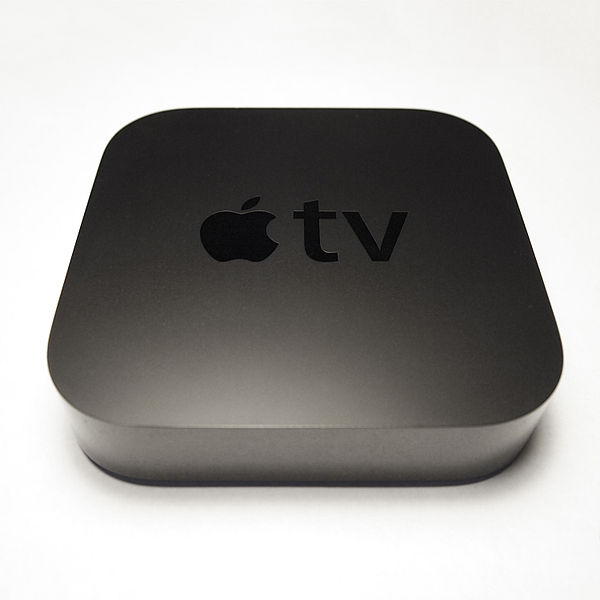
Here’s a little tip for anyone who’s experiencing problems watching movies via their Apple TV, having recently upgraded to iTunes 11.

I had this issue last night and thought it might take a lot of messing around to come up with  a fix – but, luckily found that practising that old adage of “if it don’t work, restart it” worked first time.

Trying to access my iTunes shared library from my Apple TV (2nd gen) just wouldn’t work, which was annoying to say the least. I then also tried to AirPlay the film from my iPad to the Apple TV, but this wouldn’t work either.

I had a quick check online for similar issues, but before going too far down that line, I restarted the Apple TV. After the short reboot, it then worked perfectly and my shared library came up almost straight away and I could watch the movie I wanted (The Bourne Supremacy)

Hope this helps someone else, as its easy to get these kind of errors with all these different upgrades going on continuously of software, O/S, devices, computers etc.


iPad Website Testing – Debug Console

Here’s a simple little testing tip when testing websites on the iPad, using the Safari browser.

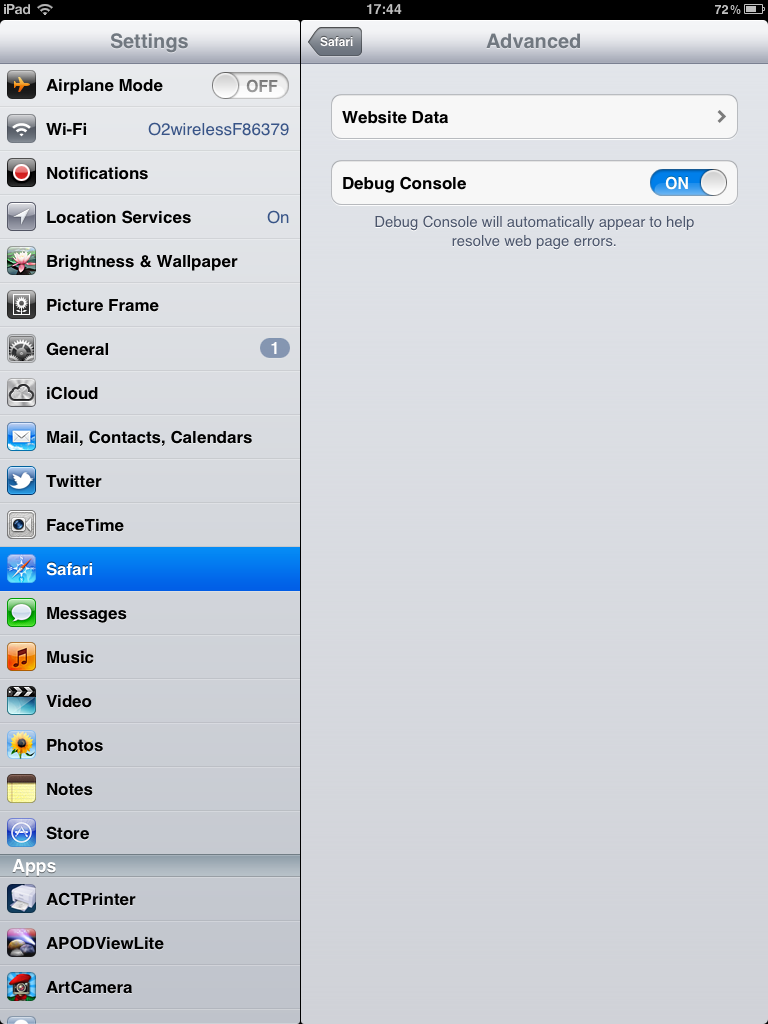
Turning on the Debug Console before starting testing will help identify any errors which may occur during the testing. The error messages will be shown in the Debug Console and these error messages can be very useful to the developers who have to fix the error. You can then take a screenshot of the Debug Console and send that to the developers or whoever needs to see it.

To turn on the Debug Console:

  • Go to Settings on iPad
  • Select Safari in the list on left
  • Select Advanced at bottom of list on right
  • Turn ON the Debug Console (see screenshot below)

Update: Since the iOS 6 upgrade, the ‘Debug Console’ option seems to have disappeared! Nice move Apple! 

iPad Settings

Using Debug Console during testing:

  • The Debug Console will sit at the top of the browser and tell you of any Messages which you can check easily, by pressing the Messages alert
  • The Console will then display any error messages
  • From the options at the end of the screen, you can select All Messages, or select only HTML messages, only JavaScript messages or only CSS messages
  • See the screenshot below for an example Debug Console display

iPad Debug Console


Dropbox – the main advantages

A few people have asked me about Dropbox recently, as they’re not sure why there’s such a positive buzz about it. So I thought I’d list the main advantages I get out of using Dropbox and hopefully it may help a few people out.

Main Advantages of Dropbox

  • Its free to start with – up to 2 Gb of storage for free can’t be sniffed at.
  • Its somewhere you can use as a central repository for documents you may want to access/edit from home and/or work – across Windows and Mac platforms
  • Your documents are also accessible via your iOS devices – iPhone and iPad – so good for when on the move
  • On the iPhone, you can save ‘Favourite’ documents to the device for offline use, for when out of internet connection for whatever reason. To do this, just go to the relevant document and press the * icon. You can then access these documents easily from the Tab menu at the footer, with the Favorites icon.
  • Sharing documents is easily achieved too – place the document in your Public folder and then right click it – there should be an option like ‘Copy Public Link’ – which is an URL which you can use to share the document with friends/colleagues etc
So overall, there are a lot of positives that I’ve found with using Dropbox, especially as a user of multiple platforms (PC, Mac, iOS etc)


iOS App Testing – Crash Reports – Part 2

Part 2 covers how to obtain Crash Reports from iOS Devices by using Apps on your iOS device, after there has been an iOS App Crash

The following Apps allow you to see Console logs on your iPhone and/or iPad:

Another App which may be useful is DevInfo by Marcio Almeida, which shows you a multitude of information about your device, including system information, networking information, process information and much more.

Of the Apps above, LogPolice has proved to be one of the most useful, as you can change the Filter to show which messages you want to see. However, the Free version limits the number of emails you can send to 1 per day. An in-app upgrade allows you to add unlimited emails and other features for 69p, so well worth considering, especially if you’re doing a lot of iOS App testing. I’ve upgraded my version of LogPolice and it allows you to email all the listed messages in either plain text or an HTML table.

These are the Apps I’ve found and used so far, there may be other Apps available which do a similar job – in case you’re a developer of one of these other Apps, please let me know via an email to testing@patwalsh.co.uk or leave a Comment below.


iOS App Testing – Crash Reports – Part 1

Having tested several iOS Apps via the uTest platform, on both iPhone and iPad devices, I thought I’d share some of the tips and tricks I’ve picked up while doing this.

iOS App Crashes

A crashing iOS App is seen as the most serious type of iOS bug – usually treated as criticial/show-stopper – especially if it happens on multiple devices.

The iOS App may crash for many different reasons, so the developer will want to know as much information about the crash as possible, so they can attempt to fix the issue. This information will usually include both a description of what the tester was doing in the iOS App at the time of the crash, the exact time of the crash and also any accompanying crash reports/logs from the device.

Obtaining Crash Reports from iOS Devices

There are two possibilities for doing this – the first is syncing your iOS device with iTunes and then using the Console app on your Mac OSX desktop/laptop, the second is to use an App onboard the iOS device and there are several of these – this approach will be covered in Part 2.

Syncing iOS Device/Console app on Mac OSX


This is a fairly simple process, which can be achieved as follows:

  1. Sync your iOS device that had the iOS App crash using iTunes
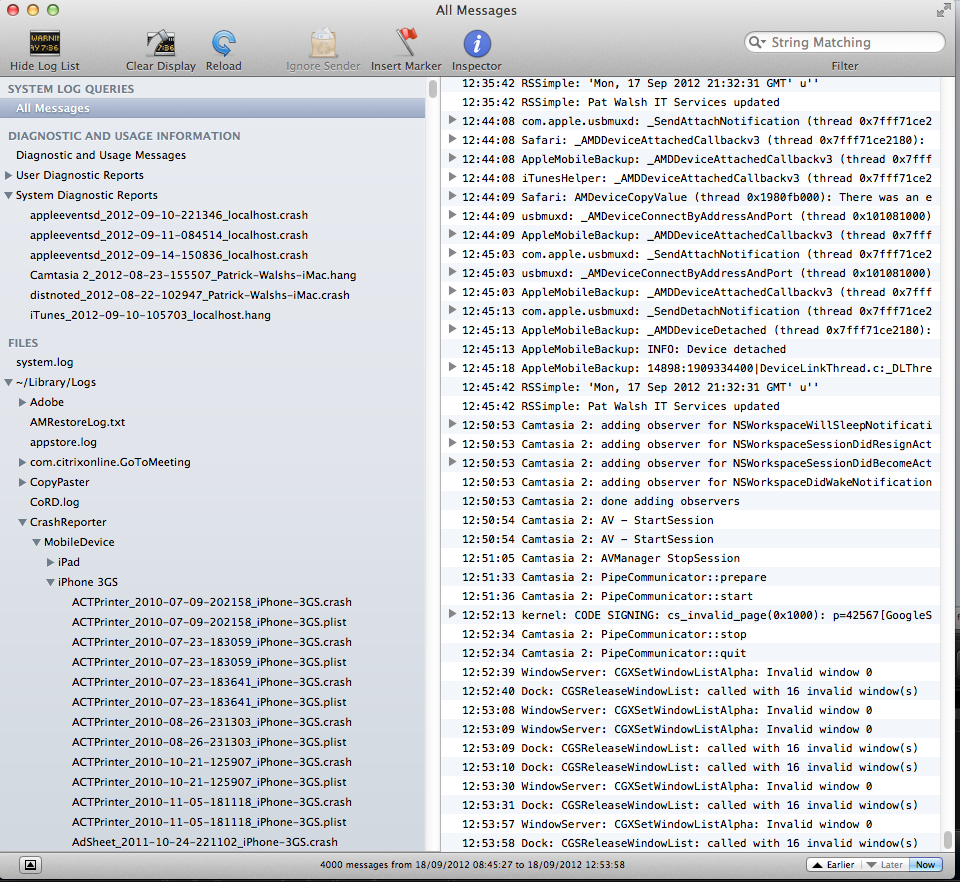
  2. Once sync has completed, startup the Console App on your Mac machine.
  3. Under the heading FILES there should be a sub-heading CrashReporter, under which there will headings for each of your iOS devices e.g. iPad and iPhone3GS (See Screenshot #1 below)
  4. Open up the list for the relevant device and you’ll see a potentially large list of crash reports, which start with […]

Mobile Development Platforms – iOS, Android, Blackberry, Kindle Fire

Updated: 22 May 2012 

I’ve done some research into the different Mobile Development Platforms, as there’s now so many different offerings from different manufacturers.

Here’s the current state of play:-

iPhone / iPad 
Objective-C using iOS development platform

Android
Java using Android SDK development platform

BlackBerry
Java using  BlackBerry API development platform – BlackBerry Java SDK
Can also port Android apps to BlackBerry using BlackBerry Packager for Android Apps

Amazon Kindle Fire
Uses customised version of Android OS 2.3

Sony Tablet 
Uses Android 3.1 Honeycomb

Samsung Tablets
Uses Android OS, also Samsung libraries, plus also their own Bada OS, which uses C++

All Platforms – HTML5/WebKit
Using HTML5 would allow web apps to work on all of these devices but – in most cases – you wouldn’t be able to access any of the specific hardware of each device. This may change over time, if the relevant support is added somehow.

Porting Android Apps 
From the above list, this means that if you develop an App in Android / Java you can then port it to BlackBerry and the Amazon Kindle Fire. I assume a port to the BlackBerry would take more effort/time than a port to the Kindle Fire.