

Upgrades

Apple’s Recommended Wi-fi Settings for iOS & OSX

iOS 6 OSX

The Apple eco-system – iOS devices and OSX systems – seems to have a few problems with wi-fi connections, especially in the time just after upgrades. I have experienced this myself a couple of times, as I documented here on my blog.

Recently, I found a page on Apple’s Support site, which details Apple’s Recommended Wi-fi settings for iOS and OSX.

Below I’ve outlined the main recommendations:

  • SSID – Any unique name
  • Hidden Network – disabled
  • MAC Address authentication or filtering – Disabled
  • Security – WPA2 Personal (AES)
  • Channel – Auto

I’d suggest checking the page on Apple’s Support site in full before making any changes to your wi-fi setups.

Note: Changing the security to WPA2 recently fixed my Wi-fi problems after the OSX upgrade to Mountain Lion.


Problem with iTunes 11 and Apple TV?

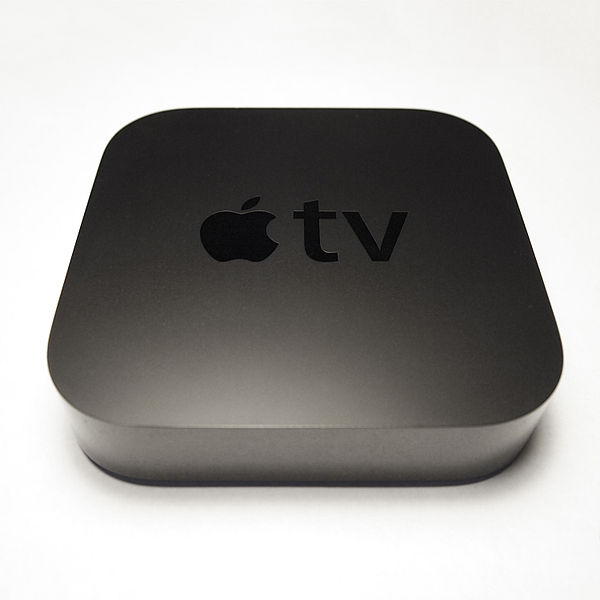
Apple TV 2nd Gen

Apple TV 2nd Gen

Here’s a little tip for anyone who’s experiencing problems watching movies via their Apple TV, having recently upgraded to iTunes 11.

I had this issue last night and thought it might take a lot of messing around to come up with  a fix – but, luckily found that practising that old adage of “if it don’t work, restart it” worked first time.

Trying to access my iTunes shared library from my Apple TV (2nd gen) just wouldn’t work, which was annoying to say the least. I then also tried to AirPlay the film from my iPad to the Apple TV, but this wouldn’t work either.

I had a quick check online for similar issues, but before going too far down that line, I restarted the Apple TV. After the short reboot, it then worked perfectly and my shared library came up almost straight away and I could watch the movie I wanted (The Bourne Supremacy)

Hope this helps someone else, as its easy to get these kind of errors with all these different upgrades going on continuously of software, O/S, devices, computers etc.


Cross-Browser Testing – Turning off browser auto-updates

Main Browsers

For effective cross-browser testing, it can be useful to have a variety of different versions of different browsers on different platforms.

In general, its very awkward (or impossible) to have different versions of the same browser on the same machine. Therefore, a way around this is to have different versions of browsers on each of your test systems / virtuals.

An example setup could be:

  • Windows 7 – IE9, Chrome 22, Firefox 16, Safari 5
  • Windows 8 – IE10, Chrome 23, Firefox 15, Safari 5
  • Mac OSX – Safari 6, Chrome 20, Firefox 14

This gives you access to a wide range of browser versions across a wide range of platforms.

One problem that will arise is that some of the browsers will auto-update themselves, if you don’t turn that feature off. In this situation, you could easily end up with all systems having the latest version of Chrome or Firefox.

Here’s a guide to turning off browser auto-updates on Mac OSX and Windows platforms. In some cases, this isn’t really relevant (IE and Safari) but in other cases very necessary (Chrome and Firefox)

Plan A – Turning off Browser Auto-Updates

Firefox
A simple Preferences / Options change.
On Mac – Preferences/Advanced/Update – then set to ‘Never check for Updates’
On Windows – Options/Advanced/Update – same option as on Mac

Chrome
Chrome has been designed to auto-update and make it very awkward for the user to not allow this or turn it off. There are some possibilities however, which may or may not work for you, depending on your setup.
On Mac

http://support.google.com/installer/bin/answer.py?hl=en&ctx=go&answer=147176

http://hints.macworld.com/article.php?story=20100406184528139

On Windows

http://dev.chromium.org/administrators/turning-off-auto-updates

This works via the Windows Registry – I can confirm this worked for me, on Windows 7.

Safari

Safari updates are part of Apple’s Software Updates – so you have control of when updates occur.

Internet Explorer (IE)

IE tends to be tied to a certain platform (IE10 on Windows 8, IE9 on Windows 7, IE8 on Windows XP etc) and even when new versions are released, its usually under the user’s control whether to update or not.

Plan B – Install an old version of the Browser

The alternative to turning off updates is to just delete the browser which has been auto-updated and install the old version again.

The site oldapps.com is excellent for finding old versions of browsers and other software. For Windows users, the URL is www.oldapps.com and for Mac users, the URL is mac.oldapps.com
This site will come in very handy in tracking down particular versions of browsers and other software, when testing compatibility or trying to reproduce reported problems and issues with a particular browser version.


iOS 6 Upgrade – Part 3 – Moans and Gripes

iOS 6

I’ve now upgraded my iPhone3GS from iOS 5.1.1 to iOS 6. This has been delayed mainly due to a freelance iOS App Testing project I was working on at iOS 5.1.1 plus also partly  due to waiting for some fix version releases, to address any initial problems (e.g. iOS 6.0.1)

In Part 1 of this series of blog posts, I covered the actual Upgrade process and my Initial Thoughts.

Then, in Part 2, I covered the New Features and Changes in iOS 6.

Now, in Part 3, I cover Moans and Gripes with iOS 6.

What’s Not There – Google Maps

Much has been made of Apple’s removal of Google Maps from iOS 6, while replacing it with Apple’s own Maps App. For me, I haven’t really noticed a problem with Apple’s Map App but I have downloaded and used the recently-released Google Maps App.

Both seem very good but as I don’t use them much, I haven’t really noticed any problems. Maybe one day when I’m out and about and need to find something in the local area (a shop, tube station etc) I’ll really find if there’s any problems.

What’s There – Auto-Correction in iOS 6

I was hoping Apple would really improve the Auto-Correction feature in iOS6, as its always been one of the worst parts of iOS.

So far, I’ve seen no improvement and actually think its got worse.

I’m not the only one and many people have been venting on this particular annoyance.

https://discussions.apple.com/thread/4329450?start=0&tstart=0

http://www.huffingtonpost.com/bianca-bosker/apple-ios-6-maps-debacle_b_1900211.html

http://bgr.com/2012/08/29/iphone-5-criticism-ios-6/

The Auto-Correction ‘feature’ has always been a source of problems and there are several sites dedicated to the funny situations that end up occurring if you don’t notice what the Auto-Correction gremlin has done to your message.

http://www.damnyouautocorrect.com/

Changing Auto-Correction Settings in iOS 6

Turning off Auto-Correction may be useful for many iOS 6 users, so I thought I’d to include how to turn it off.

Go to Settings, then General then Keyboard.

Then, as the screenshot below shows, you turn Auto-Correction ON/OFF

iOS6 Auto-Correction

App Store Gripes

In general, the App Store still seems slow to load and use.

But worst problem is that when you search for an App the list of matching Apps is shown in the manner of a  horizontal list and to move through the list you swipe sideways, one at a time. This seems a slow and cumbersome way of navigating a large list – so to me this is a Usability Fail

iOS6 App Store


iOS 6 Upgrade – Part 2 – New Features and Changes

iOS 6

I’ve now upgraded my iPhone3GS from iOS 5.1.1 to iOS 6. This has been delayed mainly due to a freelance iOS App Testing project I was working on at iOS 5.1.1 plus also partly  due to waiting for some fix version releases, to address any initial problems (e.g. iOS 6.0.1)

In Part 1 of this series of blog posts, I covered the actual Upgrade process and my Initial Thoughts.

Now, in Part 2, I cover the New Features and Changes in iOS 6. This is not an exhaustive list, but those that I have noticed/found in my own use so far of iOS 6.

New Features and Changes

iOS 6 Maps

The Google apps – Maps and YouTube – have both been removed from the iOS 6 package, so after the upgrade to iOS 6 you no longer have access to these. Apple’s own Maps app replaces Google Maps and has had a mixed reception, though in my brief use of it so far, I haven’t noticed any problems. Below is a screenshot of the Maps app in use, on my iPhone3GS.

iOS 6 Apple Maps App Screenshot

Facebook Integration

Facebook is now integrated into iOS, in a similar way that they integrated Twitter in a previous release.

iOS 6 Share screen

The Share screen has been funkily re-designed and now features more options. These are: Mail, Message, Twitter, Facebook, Add to Home Screen, Print, Copy, Bookmark and Add to Reading List

iOS 6 Mail

The Mail app seems more or less the same as before, though there’s now a ‘pull to refresh’ facility to refresh your Inbox. Also there’s a facility to set VIP emails, so you’re less likely to miss important emails – though I haven’t set this up yet.

iOS 6 Passbook

The Passbook is a new App, supposedly handy for storing Boarding Passes, Tickets etc, though I haven’t used it / set it up yet.

iOS 6 Phone

The Phone functionality has been improved, including extra options being available when you get an Incoming call. Now in addition to the usual Decline and Answer buttons, you also have the options of ‘Reply with Message’ and ‘Remind Me Later’. You can also use the new Do Not Disturb functionality, to avoid being disturbed.

Google Maps

As mentioned above, the Google Maps and YouTube apps are not included in the upgrade to iOS 6. Apple’s own Maps app replaces Google’s version and YouTube has just been left out.

By now, Google have released a version of Google Maps for iOS 6 – the release of which has apparently seen a surge in iOS 6 upgrades – and have also released a YouTube app. I’ve installed Google Maps to my iPhone3GS and it seems to operate mostly the same as before. One big plus is that the Street View feature now works really smoothly and with full screen images. Screenshots of Google Maps below.

iOS 6 Google Maps App iOS 6 Google Maps App Options iOS 6 Google Maps App Street View

YouTube App

I have also downloaded the You Tube app from the App Store. Initial thoughts on this are that its not very good, as they’ve either taken away or hidden commonly used features from the previous App that was included in iOS. A screenshot is shown below.

iOS 6 YouTube app

Due to the shortcomings of the official You Tube app, I searched out some more alternatives and found You Player app, which has a UI more like the original YouTube app, so easier to use. I found it performed well, although there is the odd crash.

In Part 3, I discuss the Moans and Gripes found so far in iOS 6.


Windows 8 Pro running on VirtualBox on iMac OSX 10.8.2 – Success!!!

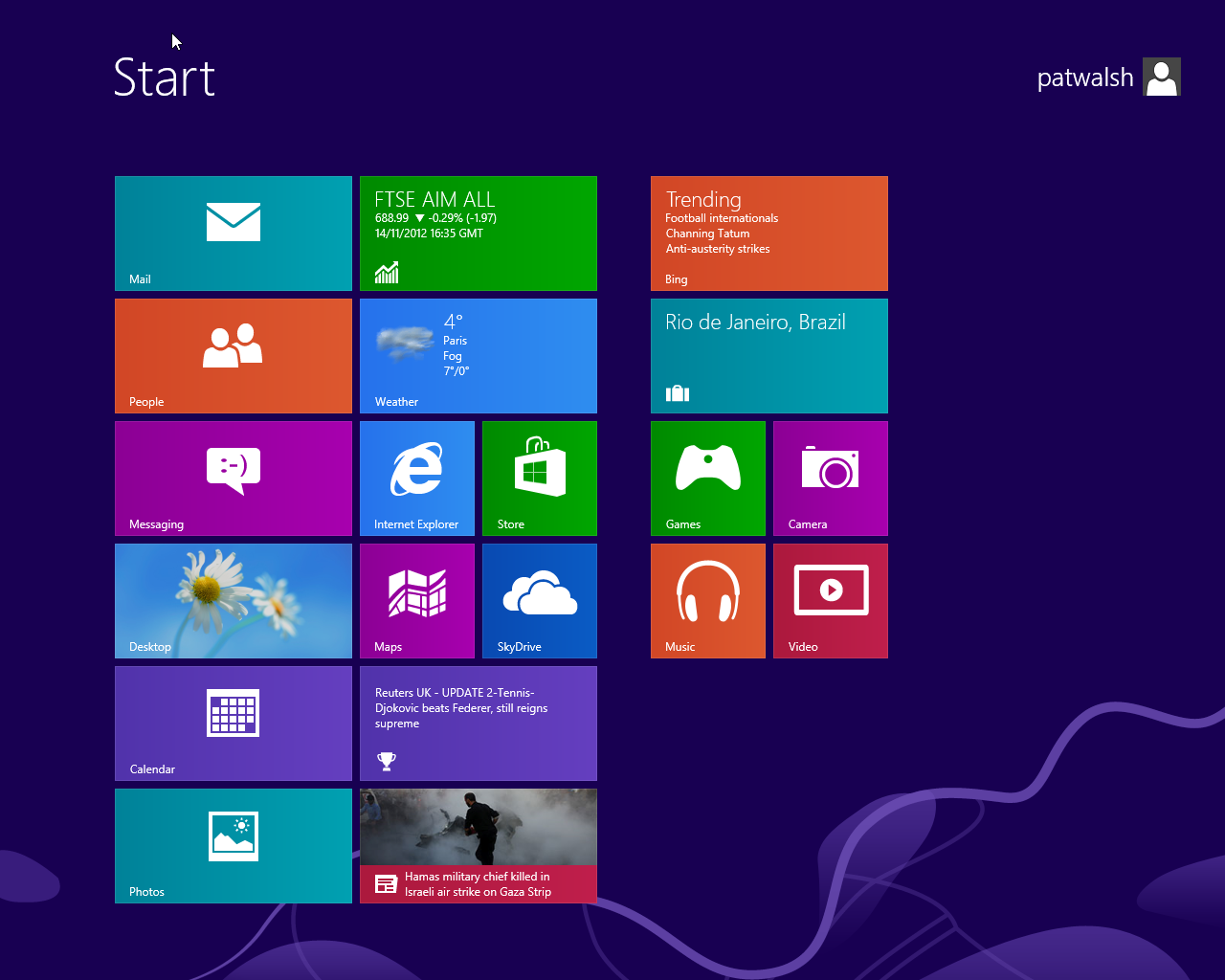
Start screen on Windows 8 Pro

As Windows 8 and IE10 have recently been released, I thought I’d better get myself a working Windows 8 system, asap. Will be very useful to be able to see how Windows 8 operates, plus also test IE10 websites as thats already either a requirement (or likely to become a requirement) in some projects I’m working on.

I’m actually writing this blog post on my Windows 8 Pro system, in IE10 – so it has been successful, but after many false starts and problems here and there.

MSN News on Windows 8

So, Windows 8 Pro is running on my iMac OSX 10.8.2, on VirtualBox 4.2.4, having upgraded a previous Windows XP SP3 virtual.

It took me many tries to get this working and the main things learnt were:

  • I tried to upgrade an existing XP virtual on VirtualBox but it would not work, however many ways I tried to change the virtual’s settings. It didn’t matter even when I had the latest copy of VirtualBox – it just wouldn’t work – the Windows-8-Setup and Windows-8-Upgrade-Assistent just wouldn’t run.
  • I then canned my existing XP virtual, which was only for test runs anyway.
  • I then got the very latest VirtualBox – v4.2.4
  • I created a new XP Virtual machine, with the settings as follows:
  •    2 CPUs
  •    Enabled PAE/NX (Important setting to avoid related errors / bootup errors)
  •    Hardware Virtualization – both options left checked
  •    Memory 2048Mb (my iMac has 12 Gb so plenty to spare)
  •    Hard Disk Space 30 GB (THIS WAS VITAL – FIRST TIME I HAD 20 GB – TOO SMALL!)
  • I then created the Windows XP virtual – from a genuine Windows XP SP2 DVD
  • I then had to 1) upgrade the browser to IE8 and 2) update Windows XP to SP3
  • I then downloaded Windows 8 Setup from the email where I’d purchased the Windows 8 Pro upgrade (for £24.99)
  • This time it ran perfectly, unlike on previous attempts, where it started but immediately exited
  • Then entered the Product Key
  • It then downloads Windows 8, which took a while but not that long really for a whole O/S download
  • Then the messages ‘Installing Windows 8′ then ‘Getting a few things ready…’ which continued for a while…
  • Then it was time to accept the License Terms
  • Then clicked Install and off it went.
  • Note: First time I got this far, it went wrong, as the iMac went into Power Saving mode and this screwed up the install process - at this point, it regressed back to Windows XP!  In readiness for the next time, I turned off all Power Saving.
  • Eventually, on the next try, it all worked.
  • I then started up Windows 8 Pro on my VirtualBox and – it started ok.
  • First problem though was that there was no network connection/adapter.
  • I Googled this and found an answer – so shut down the Windows 8 Pro virtual and changed the Network settings for it in VirtualBox. This was to to ensure in the Network settings screen that ‘Attached to:’ said NAT and Adapter Type said ‘Intel PRO/1000 MT Desktop (82540EM)
  • I then started up the Windows 8 Pro virtual and bang – it all worked fine, network and all (having changed a network setting on the main Start screen)

So now I have a fully functioning Windows 8 Pro setup for the price of a £24.99 upgrade - not bad! Now I just need to work out how the hell Windows 8 works!

First thoughts of Windows 8 are that its a bit unusual, but I actually like it – and thats using a mouse to get around it and not touch screens etc.

Below are screenshots of the various settings screens in VirtualBox for the successful Windows 8 Pro virtual machine.


Hopes of Mountain Lion wifi fix in OSX 10.8.1 update?

Apple has released the OSX 10.8.1 update to Mountain Lion.

It was hoped this would feature a fix to the wifi issue being suffered by lots of Mountain Lion users. However, a check through the issues list and there was no mention of a wifi fix.

I updated (manually) anyway to see if they’d sneaked a fix in.

Initial signs were good – after install and restart, the wifi connection was still there and proceeded to work ok until I finished my use of the iMac, for around 30 minutes.

I knew the real test would be when come back to iMac later, after its been in sleep and then wake it. Initially, the wifi did work and I was able to check a Dropbox document and browsed to BBC site on Safari. However, when I then created a new tab and typed a new URL, the wifi dropped out. This has happened again since, so its definitely still a problem.

I’ve updated the Apple forums with this info.

So, we await a specific ‘OSX wifi fix’ update like happened last time.

Come on Apple!!! Sort it out!!!

Wifi issue history


Another potential fix to wifi issue on OSX Mountain Lion

Update 14 August 2012: The wifi problem is still ongoing, with the wifi connection being lost erratically – sometimes when haven’t used browser/net for a while and sometimes when still using it (which is even more annoying!)
I’ve tried all the different suggestions so far, so looks like it will be a similar situation to last time – the wifi connection problem wasn’t fixed until Apple released an update, that time to Lion, and it was specifically ‘iMac WiFi Update’. Come on Apple, sort it out!

The list of other users with the same problem is mounting too – see Apple Support/Forum https://discussions.apple.com/message/19135664#19135664

Update: After 90 minutes of use, the wifi connection still hanging in. I’ve been using browser, then using a totally different non-internet application, then back to browser.
I did have an initial problem where it dropped out straight away, but this was fixed when I  pressed ‘Turn Wi-Fi Off’ and then On again in Network Preferences, to ensure I was using the new wifi settings – with MTU change.

Original: After previous attempts (WEP to WPA2, DHCP clear) at fixing the wifi issue experienced since Mountain Lion upgrade, I’ll now try another fix – Changing the MTU size to 1453.

I’ve now made the change to my system, so will report back after using the system for a while.


Possible Fix to Mountain Lion wifi issue…

Update: Friday 3rd August – wifi still dropping out, even after WPA2 move. Next thing to try, deleting the WEP Network setting and seeing what happens. Also found this page on osxdaily.com site, which reports the wifi problem and some solutions, including renewing DHCP – which I’ll try and see if it solves the problem.

Original Post: The other day I reported that there was again a problem with wifi connections dropping after an OSX upgrade – this time to Mountain Lion.

Handily, one of the users on the Apple support forums suggested a fix for this issue.

The suggested fix is to change your wifi connection setups to use WPA2 encryption instead of WEP.

After a bit of fiddling around to get this setup, it does work for me and has worked the past hour or so.

To change the connection setups from WEP to WPA2:-

  • In Network Preferences, on Wifi, press Turn Wi-Fi Off button
  • Click Advanced button
  • Delete your existing Network with – button (if it shows WEP security, as mine did)
  • Click + button to add new Network
  • Enter the details for you wifi router/broadband setup. I found you have to enter this manually for it to allow you to select WPA2. Enter your SSIS, select WPA2 and enter your wifi password. Click OK to save settings. May need to supply Admin password.
  • I then found I had to switch wifi on and off a couple of times before I could get reliable connection.
  • Also note that there are now 2 Networks shown  under ‘Preferred Networks’ in Network Preferences/Wifi – one for WPA2 and one for WEP. It seems to work like this, so I’ve left it as is.
By |August 2nd, 2012|iMac, OSX, Upgrades|0 Comments