Mobile

Trying out Droplr

Droplr

Having used the excellent Dropbox almost exclusively for file-sharing over the last year, I thought it was about time I tried something different, to compare and contrast to Dropbox.

The similar-sounding Droplr has been around a while and the write-ups I’ve seen for it have always been good. Another plus is that you can get up to 1 Gb storage for free, can store images, videos, files and notes, plus there are several different ways of accessing content – Web App, Mac App, Windows App and iOS App.

I’ve registered for my new Droplr account – as simple as suppling my email address and password – and so far have installed the iOS App and used the Web App. After a small amount of use, things are looking good. I’ll add another post with more feedback after about a weeks use of the Droplr service.

On AppStorm.net – Review comparing Droplr to CloudApp

News: 30 Jan 2013 – BB10 launched

bb10-img

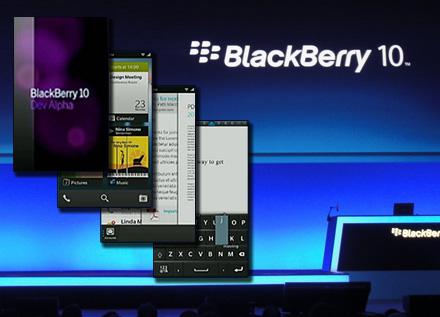
RIM are today launching their BB10 OS, which could make or break the firm’s future.

Will it help them to regain ground on Apple’s iOS and Google’s Android? Only time (and users) will tell.

TechCrunch are providing live coverage of the BB10 Launch Event as are (unexpectedly!) the Daily Mirror.

During the launch event, it was announced that RIM will now drop the RIM name and become BlackBerry.

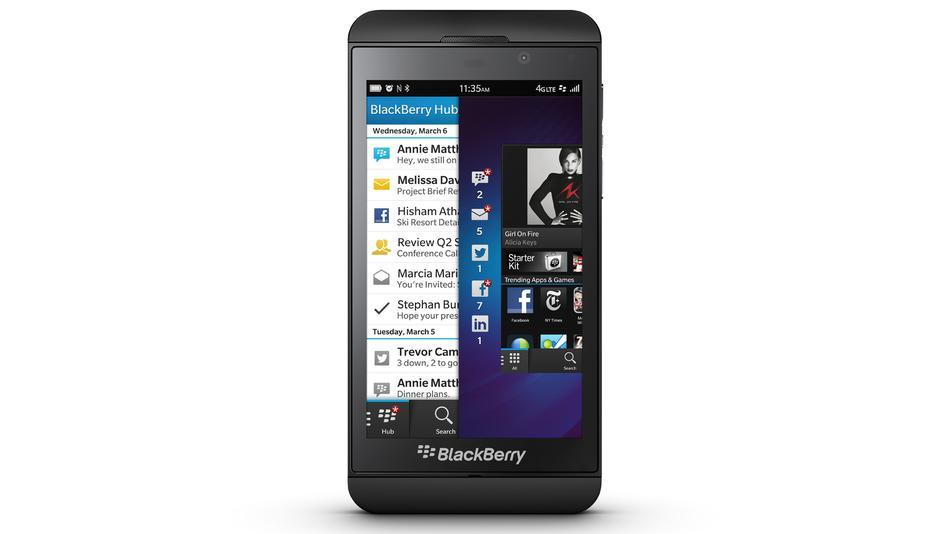
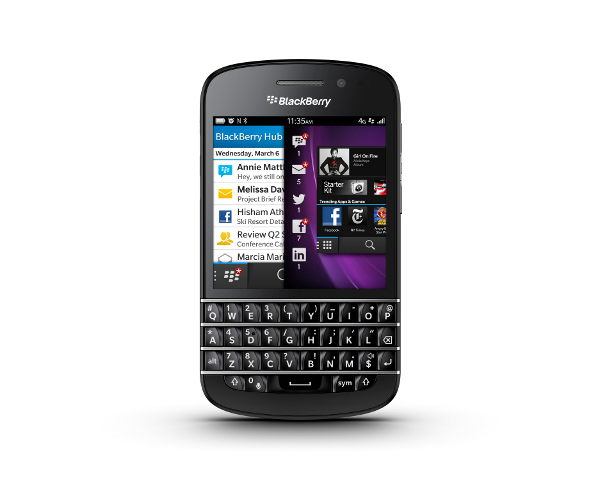
And here’s two BlackBerry devices unveiled today – the Z10 and the Q10 – courtesy of the DailyTech website.

BB-Z10BB Q10


BlackBerry Z10 & Q10 Reviews:

CNET.com   Z10 Review  Q10 Hands-On

Guardian    Z1o Video Review (with annoying ad!)

Endgadget  Z10 Review

YouTube Video BlackBerry Z10 Reviews:


Apple’s Recommended Wi-fi Settings for iOS & OSX

iOS 6 OSX

The Apple eco-system – iOS devices and OSX systems – seems to have a few problems with wi-fi connections, especially in the time just after upgrades. I have experienced this myself a couple of times, as I documented here on my blog.

Recently, I found a page on Apple’s Support site, which details Apple’s Recommended Wi-fi settings for iOS and OSX.

Below I’ve outlined the main recommendations:

  • SSID – Any unique name
  • Hidden Network – disabled
  • MAC Address authentication or filtering – Disabled
  • Security – WPA2 Personal (AES)
  • Channel – Auto

I’d suggest checking the page on Apple’s Support site in full before making any changes to your wi-fi setups.

Note: Changing the security to WPA2 recently fixed my Wi-fi problems after the OSX upgrade to Mountain Lion.


iOS 6 Upgrade – Part 3 – Moans and Gripes

iOS 6

I’ve now upgraded my iPhone3GS from iOS 5.1.1 to iOS 6. This has been delayed mainly due to a freelance iOS App Testing project I was working on at iOS 5.1.1 plus also partly  due to waiting for some fix version releases, to address any initial problems (e.g. iOS 6.0.1)

In Part 1 of this series of blog posts, I covered the actual Upgrade process and my Initial Thoughts.

Then, in Part 2, I covered the New Features and Changes in iOS 6.

Now, in Part 3, I cover Moans and Gripes with iOS 6.

What’s Not There – Google Maps

Much has been made of Apple’s removal of Google Maps from iOS 6, while replacing it with Apple’s own Maps App. For me, I haven’t really noticed a problem with Apple’s Map App but I have downloaded and used the recently-released Google Maps App.

Both seem very good but as I don’t use them much, I haven’t really noticed any problems. Maybe one day when I’m out and about and need to find something in the local area (a shop, tube station etc) I’ll really find if there’s any problems.

What’s There – Auto-Correction in iOS 6

I was hoping Apple would really improve the Auto-Correction feature in iOS6, as its always been one of the worst parts of iOS.

So far, I’ve seen no improvement and actually think its got worse.

I’m not the only one and many people have been venting on this particular annoyance.

https://discussions.apple.com/thread/4329450?start=0&tstart=0

http://www.huffingtonpost.com/bianca-bosker/apple-ios-6-maps-debacle_b_1900211.html

http://bgr.com/2012/08/29/iphone-5-criticism-ios-6/

The Auto-Correction ‘feature’ has always been a source of problems and there are several sites dedicated to the funny situations that end up occurring if you don’t notice what the Auto-Correction gremlin has done to your message.

http://www.damnyouautocorrect.com/

Changing Auto-Correction Settings in iOS 6

Turning off Auto-Correction may be useful for many iOS 6 users, so I thought I’d to include how to turn it off.

Go to Settings, then General then Keyboard.

Then, as the screenshot below shows, you turn Auto-Correction ON/OFF

iOS6 Auto-Correction

App Store Gripes

In general, the App Store still seems slow to load and use.

But worst problem is that when you search for an App the list of matching Apps is shown in the manner of a  horizontal list and to move through the list you swipe sideways, one at a time. This seems a slow and cumbersome way of navigating a large list – so to me this is a Usability Fail

iOS6 App Store


iOS 6 Upgrade – Part 2 – New Features and Changes

iOS 6

I’ve now upgraded my iPhone3GS from iOS 5.1.1 to iOS 6. This has been delayed mainly due to a freelance iOS App Testing project I was working on at iOS 5.1.1 plus also partly  due to waiting for some fix version releases, to address any initial problems (e.g. iOS 6.0.1)

In Part 1 of this series of blog posts, I covered the actual Upgrade process and my Initial Thoughts.

Now, in Part 2, I cover the New Features and Changes in iOS 6. This is not an exhaustive list, but those that I have noticed/found in my own use so far of iOS 6.

New Features and Changes

iOS 6 Maps

The Google apps – Maps and YouTube – have both been removed from the iOS 6 package, so after the upgrade to iOS 6 you no longer have access to these. Apple’s own Maps app replaces Google Maps and has had a mixed reception, though in my brief use of it so far, I haven’t noticed any problems. Below is a screenshot of the Maps app in use, on my iPhone3GS.

iOS 6 Apple Maps App Screenshot

Facebook Integration

Facebook is now integrated into iOS, in a similar way that they integrated Twitter in a previous release.

iOS 6 Share screen

The Share screen has been funkily re-designed and now features more options. These are: Mail, Message, Twitter, Facebook, Add to Home Screen, Print, Copy, Bookmark and Add to Reading List

iOS 6 Mail

The Mail app seems more or less the same as before, though there’s now a ‘pull to refresh’ facility to refresh your Inbox. Also there’s a facility to set VIP emails, so you’re less likely to miss important emails – though I haven’t set this up yet.

iOS 6 Passbook

The Passbook is a new App, supposedly handy for storing Boarding Passes, Tickets etc, though I haven’t used it / set it up yet.

iOS 6 Phone

The Phone functionality has been improved, including extra options being available when you get an Incoming call. Now in addition to the usual Decline and Answer buttons, you also have the options of ‘Reply with Message’ and ‘Remind Me Later’. You can also use the new Do Not Disturb functionality, to avoid being disturbed.

Google Maps

As mentioned above, the Google Maps and YouTube apps are not included in the upgrade to iOS 6. Apple’s own Maps app replaces Google’s version and YouTube has just been left out.

By now, Google have released a version of Google Maps for iOS 6 – the release of which has apparently seen a surge in iOS 6 upgrades – and have also released a YouTube app. I’ve installed Google Maps to my iPhone3GS and it seems to operate mostly the same as before. One big plus is that the Street View feature now works really smoothly and with full screen images. Screenshots of Google Maps below.

iOS 6 Google Maps App iOS 6 Google Maps App Options iOS 6 Google Maps App Street View

YouTube App

I have also downloaded the You Tube app from the App Store. Initial thoughts on this are that its not very good, as they’ve either taken away or hidden commonly used features from the previous App that was included in iOS. A screenshot is shown below.

iOS 6 YouTube app

Due to the shortcomings of the official You Tube app, I searched out some more alternatives and found You Player app, which has a UI more like the original YouTube app, so easier to use. I found it performed well, although there is the odd crash.

In Part 3, I discuss the Moans and Gripes found so far in iOS 6.


iOS 6 Upgrade – Part 1 – Upgrade and Initial Thoughts

iOS 6

I’ve now upgraded my iPhone3GS from iOS 5.1.1 to iOS 6. I  put this upgrade on hold, mainly due to a freelance iOS App Testing project I was working on requiring me to keep iOS 5.1.1 but also partly due to waiting for some fix version releases, to address any initial problems (e.g. iOS 6.0.1)

One of my main hopes for the iOS 6 upgrade was that it would address some of the performance problems I’d experienced using iOS 5.1.1 where some of the Apps seemed to be working in slow motion. Some net reviews / blogs were encouraging reading on this point. Though of course, you never know until you upgrade your own device.

Upgrade

  • The upgrade process was fairly painless, though took a bit longer than expected.
  • I synced my iPhone3GS before the upgrade, so I had a recent backup. This meant I upgraded via iTunes, with the iPhone3GS in the cradle.
  • The device had 1.12 Gb free space on it, according to iTunes.
  • iTunes said iOS 6.0.1 was available for the upgrade
  • Took quite a while to download the actual upgrade file(s) – which proved to be 780 Mb
  • Once downloaded, I then installed it.
  • The whole process took just over 30 minutes
  • Once the upgrade was completed and the iPhone3GS had restarted, there were a couple of steps to go through before using it.
  • Step 1 – Select wifi network – this had my existing wifi network already chosen in the list and was as easy as just selecting it
  • Step 2 – Turn on Location Servcies
  • Step 3 – Signin with Apple ID – it says for iCloud, Messages and FaceTime

Initial Thoughts

  • Initial thoughts are that it looks a little bit different, but hardly noticable differences
  • After a couple of days usage, it does seem to be a smoother and faster experience, with fewer delays when using the built-in Apps. This was especially noticed (and appreciated) in the Notes and Calendar Apps.
  • However, some Apps are still slow – with the re-designed App Store still slow and painful to use.
  • One interesting point is that there’s now 2.4 Gb of free space on my iPhone3GS, so after the upgrade I’ve got an extra 1.2 Gb
  • Apps-wise, some big changes have made in the upgrade process – with Google’s Maps and YouTube apps no longer being included.
  • Apple’s own Maps app replaces the Google Maps app – much has been written of people’s disappointments with the Apple Maps app

The next blog post – Part 2 – will look at the New Features and Changes in iOS 6


iPhone Website Testing – Debug Console

Following on from my post the other day about iPad Website Testing, I thought I’d post on a similar area, but on iPhone device.

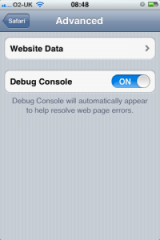
Turning on the Debug Console before starting testing will help identify any errors which may occur during the testing. The error messages will be shown in the Debug Console and these error messages can be very useful to the developers who have to fix the error. You can then take a screenshot of the Debug Console and send that to the developers or whoever needs to see it.

To turn on the Debug Console:

  • Go to Settings on iPhone
  • Select Safari from the list
  • Select Advanced at bottom of list
  • Turn ON the Debug Console (see screenshot below)

Update: Since the iOS 6 upgrade, the ‘Debug Console’ option seems to have disappeared! Nice move Apple! 

iPhone Settings Advanced

Using Debug Console during testing:

  • The Debug Console will sit at the top of the browser and tell you of any Messages which you can check easily, by pressing the Messages alert. See screenshot below.
  • The Console will then display any error messages
  • From the options at the end of the screen, you can select All Messages, or select only HTML messages, only JavaScript messages or only CSS messages
  • See the screenshot below for an example Debug Console display

iPhone Safari Debug Console Errors List

iPhone Safari Console

iPad Website Testing – Debug Console

Here’s a simple little testing tip when testing websites on the iPad, using the Safari browser.

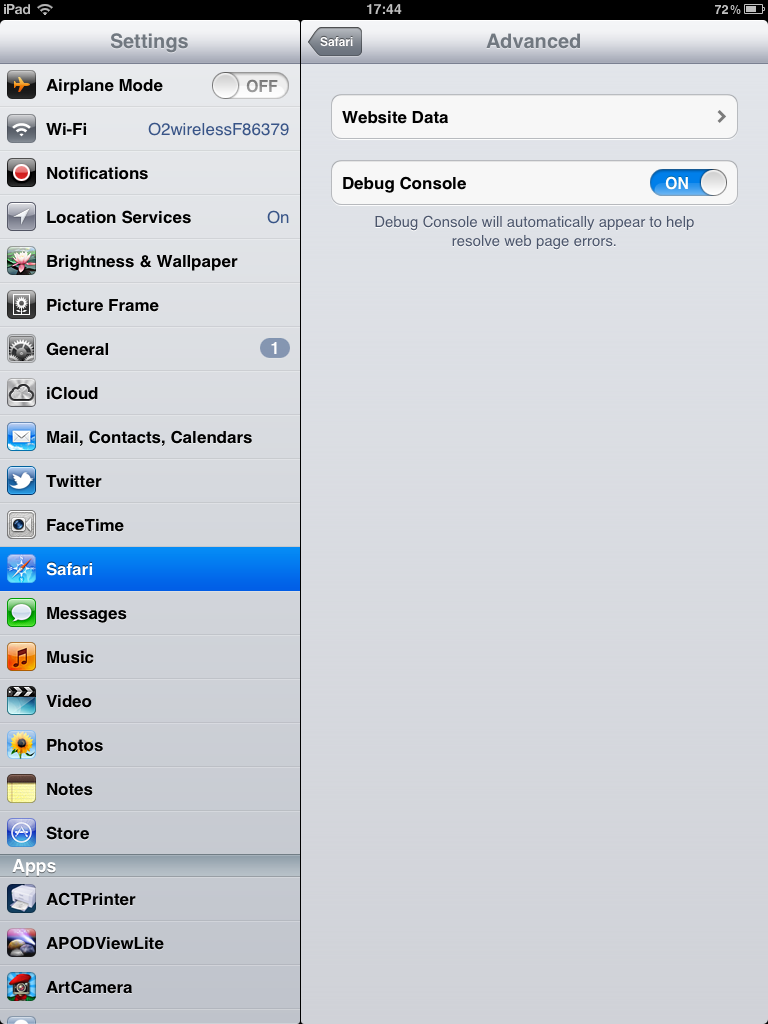
Turning on the Debug Console before starting testing will help identify any errors which may occur during the testing. The error messages will be shown in the Debug Console and these error messages can be very useful to the developers who have to fix the error. You can then take a screenshot of the Debug Console and send that to the developers or whoever needs to see it.

To turn on the Debug Console:

  • Go to Settings on iPad
  • Select Safari in the list on left
  • Select Advanced at bottom of list on right
  • Turn ON the Debug Console (see screenshot below)

Update: Since the iOS 6 upgrade, the ‘Debug Console’ option seems to have disappeared! Nice move Apple! 

iPad Settings

Using Debug Console during testing:

  • The Debug Console will sit at the top of the browser and tell you of any Messages which you can check easily, by pressing the Messages alert
  • The Console will then display any error messages
  • From the options at the end of the screen, you can select All Messages, or select only HTML messages, only JavaScript messages or only CSS messages
  • See the screenshot below for an example Debug Console display

iPad Debug Console


iOS App Testing – Ad Hoc App Delivery Method

As I recently started using TestFlight for this, I thought I’d outline how the other way of delivering Apps to testers works – that is Ad Hoc Delivery.

Firstly, the UDID of your iOS Device(s) has to be known by the Developer delivering the App to you, otherwise this whole process won’t work. Here’s a handy guide to finding your device’s UDID.

Then, you need to follow these manual steps:

  • You will normally need to delete old versions of the App to be tested (not always necessary, so check first) from iTunes / your iOS device
  • Delivery of the App could be via email or Dropbox or similar method
  • The App will either be delivered as an .ipa file or a ZIP file
  • If necessary, unzip the ZIP file
  • If a Mobile Provisioning File has been supplied also, you will need to add this to your iTunes Library first. Also, the accompanying file will be named .app rather than .ipa
  • Depending on which type of delivery, add either the .app or .ipa file to your iTunes Library
  • Go to your iOS device in iTunes and look under Apps.
  • Find the new App – easiest way is to sort by Date
  • Click to select the new App to be tested
  • Then sync your iOS device
  • May also need to click Apply also

As you can see, this is a lot longer route than using TestFlight.

Here’s some extra info on the Ad Hoc delivery method.

http://www.camiloo.co.uk/install-your-app-iphoneipad/

http://www.wikihow.com/Install-Ad-hoc-iPhone-OS-Apps

Installing via Windows http://www.innerfence.com/howto/install-iphone-application-ad-hoc-distribution 

Apps World 2012, Day 2, Wednesday 3 October 2012

Last Wednesday, I went along to Day 2 of Apps World 2012, at Earls Court 2. I went for the full day, as there was more of interest during the morning session, especially around the area of Mobile Testing.

My photos from the day are below, some of dodgy quality as all are via my iPhone. There’s also the official photos available at Apps World blog

Here’s my findings, on the days events:

  • I saw several presentations at the Developer Zone and some of these presentations are now available on the Apps World website, either as Audio and/or Slides downloads. The ones I saw on the day included the following:
  • - At 1040, the presentation on Mobile Testing, by Becky Wetherill of Borland. This dealt with both areas of Mobile Testing and also Borland’s Silk Mobile testing product. One of the interesting points was that due to the number of different devices, screen sizes and O/S combinations, there’s over 100,000 possible device combinations – obviously impossible to test all of those! Therefore, the Edge Strategy is used, to test minimum and maximum O/S versions, on different devices, with minimum and maximum device screen sizes. There all also many factors which affect an Apps performance and behaviour, including O/S Versions, Screen Size and Chipsets.
  • - At 1110, the Applicasa presentation was interesting and eye-catching – their idea being to take Zombie users out of developers Apps and turn them into active/paying users
  • - At 1120, Tim King, the CTO of 5app, gave his forthright presentation on the amount of cowboys in the world of App development.
  • - At 1130, there was a presentation from Grant Skinner, on Building the Atari Arcade in HTML5 & CreateJS. His company got this projects from Microsoft and Atari and was a way of showcasing HTML5, in this case for games.
  • - After lunch, at 1300, there was then a panel from AQuA – the App Quality Alliance –  which is a non-profit organisation created by Sony, Orange, Oracle, Samsung and many others with the aim of promoting App Quality, mainly in the Android area.
  • - At 1330, there was a presentation from PayPal, on simplifying the payment experience. Part of this covered the Mobile Payments Library (MPL) for iOS and Android, which allows developers to build PayPal payments functionality right into their Apps. Another interesting fact I picked up was that PayPal provide a global test platform at developer.paypal.com where developers and testers can test the whole payment process – including multi-currencies and multi-countries. This allows all use cases to be tested before going live. Dev resources can be found at x.com/mobile and x.com/developers/paypal. Tech support is also available at paypal.com/mts.


The whole area of Mobile Payments is an interesting and intriguing one, as it seems to be where everything is heading more and more. With so many competing Mobile Payments technologies it will be interesting to see who’ll be left standing after the coming period of consolidation – surely it won’t just be PayPal? I think testing these different types of Mobile Payments is an interesting challenge, made more difficult by the sheer variety of payment options.

At Apps World, I talked to the following Mobile Payments companies briefly, some of which I’d heard of, some of which I hadn’t:

  • Zooz – they provide an SDK to developers, so they can then choose which payment options to enable for their users. They provide a sandbox for testing.
  • iZettle – similar to Square, they use a dongle to read card details and an App on the Mobile device to do the payment processing.
  • Payoneer – they provide global payment solutions, where payments are made to a prepaid Mastercard, ideal for international freelancers etc who need to be paid for their work via different online work platforms.

Overall, Apps World was well worth attending, a good way of networking and finding out the latest trends and news in the Apps World, with areas of interest for both developers and testers.